APM, Now with a VS Code Interface

In my previous post about APM, I explained why I prefer it for managing AI agent configuration. It gives those files the same things I expect from any dependency: a manifest, versioning, and a repeatable install.
But there was one mismatch. APM is a CLI, and I don’t want every small task to begin with remembering a command, its flags, and which options belong before or after a subcommand. I’m a visual person—and I suspect I’m not the only one. CLIs are excellent when I know exactly what I want to run; when I’m browsing packages or choosing among options, I’d rather see what’s available, make a selection, and know whether it worked.
So I built APM for VS Code: a visual front end for the commands I use most, with the feedback and validation I expect from an editor. The source is public on GitHub.
From “what was that command?” to “pick a package”
The difference is easiest to see in the package browser. The APM icon opens a view with the catalog, installed packages, and updates. I search, filter, inspect a package, and choose an action from its page. To install something that isn’t in the catalog, I can enter its source in a VS Code input box. Before a change is applied, the extension asks me to confirm; when I’m not ready to commit, I can preview APM’s proposed plan first.
No terminal command to assemble. No guessing whether I’m installing to this project or my user-wide setup: I choose a workspace or global scope in the interface. When the operation finishes, I get a result in the editor. If something fails, the notification can take me to the APM output or offer a relevant next step, such as checking authentication or running the doctor command.
For much of this workflow, I can keep a hand on the mouse and manage a project’s AI plugins without constantly switching back to the keyboard.
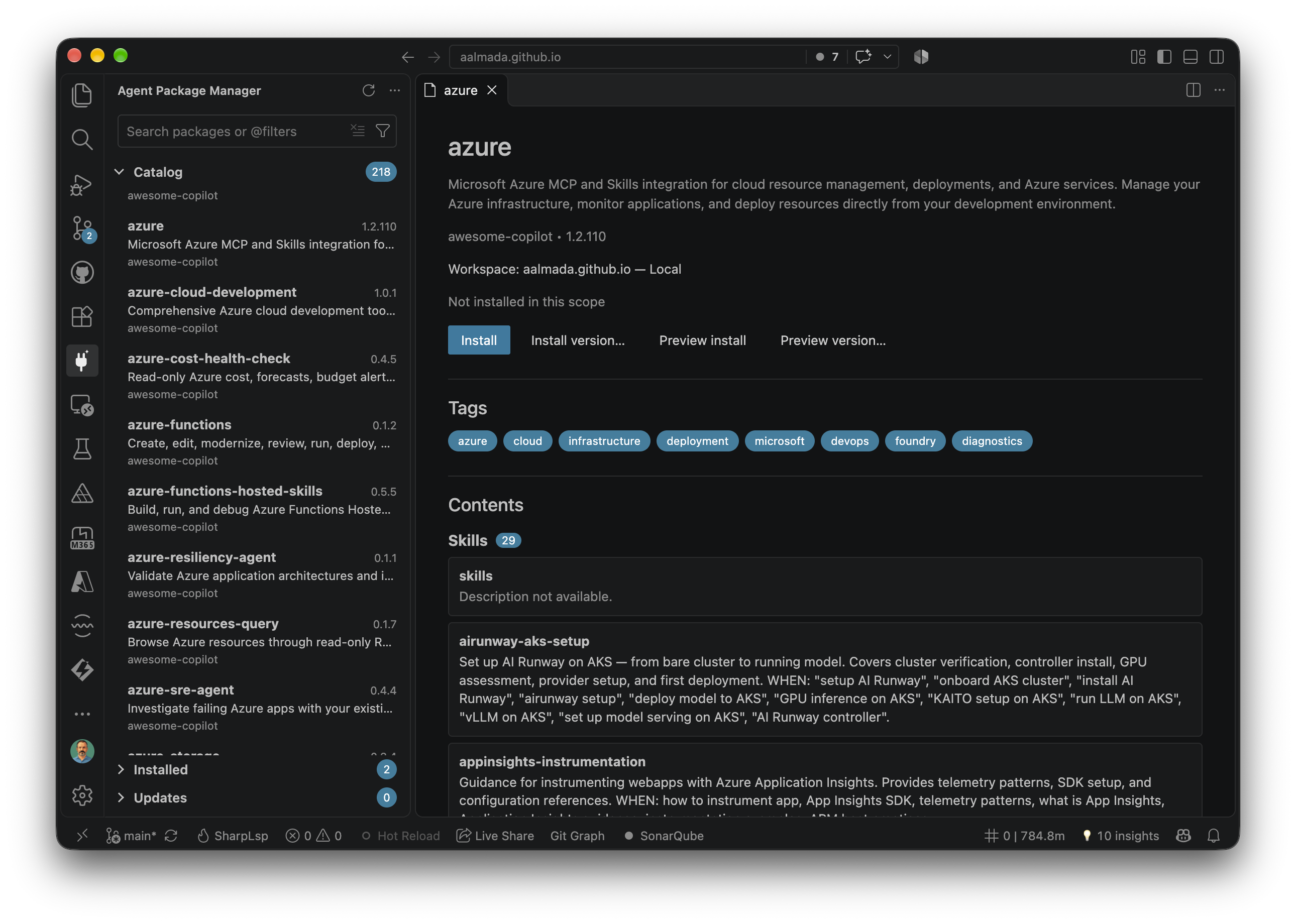
That’s what I mean by making the CLI visual. The point isn’t to hide that a command runs. It’s to replace command syntax as the interface with choices, validation, progress, and useful feedback.
The package view keeps the same idea when I’m just exploring. Catalog, Installed, and Updates are separate, searchable sections; I can resize or collapse them and keep my layout. I can inspect package contents—skills, agents, instructions, prompts, and documentation—before deciding to install.
For everyday filtering, I use the menu items—no special syntax to remember. I can combine them with search terms, or type @-style filters directly, just like in VS Code’s native Extensions view:
1
@marketplace:"team tools" @updates
Other filters include @installed and @dependencies, and I can change the sort order too. It feels like browsing a collection, not querying a CLI and reconstructing the answer from its output.
A wizard instead of a pile of flags
Project initialization is another good example. Rather than starting with apm init and figuring out which flags I need, I choose APM: Initialize Project. The extension asks for the project name, then optional version, description, and author. It validates the name as I type, fetches the targets supported by the installed APM CLI, and lets me choose which harnesses to include—or leave them empty for APM’s auto-detection.
The result is still an ordinary apm.yml. For example, this is the manifest for the blog you’re reading:
1
2
3
4
5
6
7
8
9
name: aalmada.github.io
targets:
  - copilot
dependencies:
  apm:
    - anthropics/skills/skills/skill-creator
    - netfabric/intelligentium/plugins/dotnet#dotnet-v0.8.0
  mcp:
    - io.github.upstash/context7
After initialization, the manifest stays the source of truth. The extension adds local completions and field documentation as I edit it; those hints don’t need to run APM or make a network request. When I want to check the file, I explicitly run validation. I can compile, preview compilation, audit the workspace, or start a watch task from VS Code too.
And this isn’t a Copilot-only workflow. APM manages agent configuration for GitHub Copilot and most other harnesses, and the extension works with those same APM projects. During initialization, I can select from the targets supported by the installed CLI; after that, APM’s manifest and compilation workflow determine how the configuration is applied. I use Copilot in this repository, but the interface isn’t tied to it.
The interaction changes; the underlying tool and its files don’t. That’s exactly the separation I wanted.
Settings, not another configuration system
Marketplaces are part of the same workflow. I can define marketplace sources in VS Code Settings instead of first dropping to a terminal to register them. Entries can be a repository shorthand, a Git URL, a marketplace JSON URL, or a local path; I can also give one a name and a Git ref:
1
2
3
4
5
{
  "apm.marketplaces": [
    "team=your-org/agent-packages#main"
  ]
}
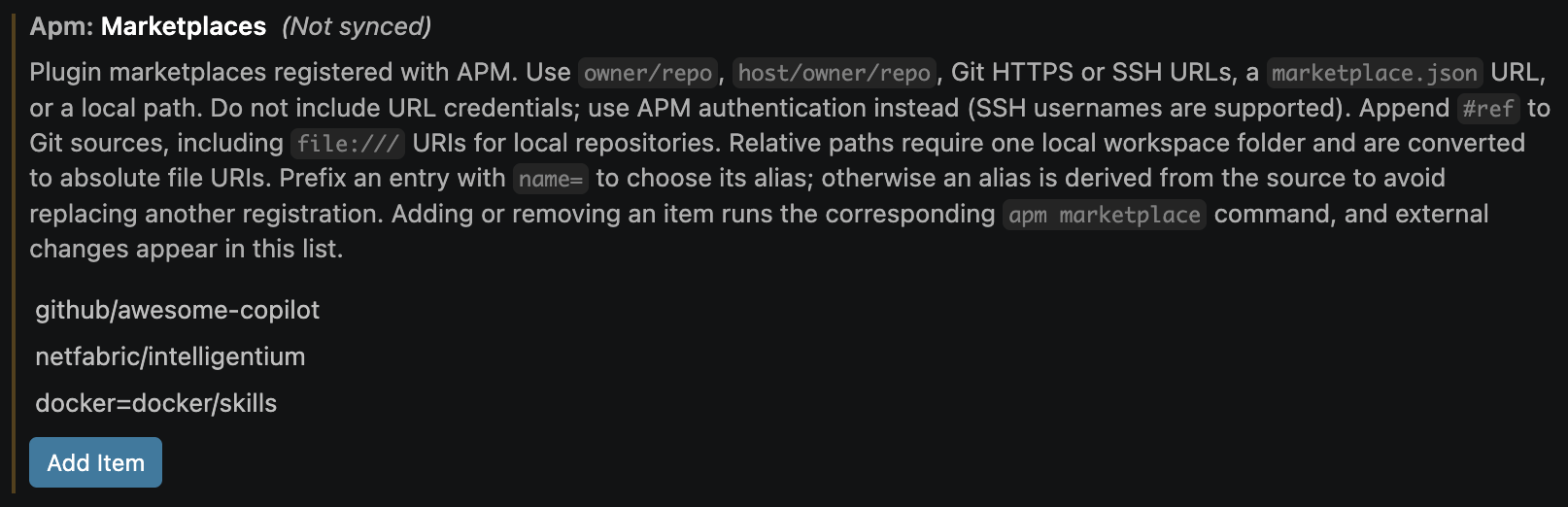
The extension synchronizes those entries with APM’s marketplace registry. It also exposes a supported subset of APM configuration as apm.config.* settings—things like the default install target, SSH preference, automatic integration, and MCP registry URL—and keeps those values in sync with APM’s own configuration. I don’t have to choose between the editor and the CLI’s existing configuration.
That’s important to me: a VS Code interface shouldn’t create a second, competing source of truth. APM still resolves and installs packages; apm.yml still defines project dependencies; APM’s registry and config remain the underlying settings. The extension makes those pieces easier to see and change.
Visual doesn’t mean careless
An interface can make commands easier to run, but it should also make mistakes harder. Marketplace entries are checked before they’re registered. Package actions show a preview where possible and require confirmation before changing dependencies. The extension requires a trusted workspace before it runs APM or reads package sources.
It also treats package documentation as external input. Markdown is sanitized, and remote README images are blocked by default so opening a package page doesn’t silently contact third-party image hosts. When APM asks for a value to configure an MCP server, the extension uses a hidden input and redacts the value from captured output.
And a successful process exit isn’t always the same thing as a successful update. After updating a package, the extension refreshes its state and checks whether APM now considers it current. If the package is still outdated—or the result can’t be verified—it says so instead of displaying a success-shaped message. Audits similarly distinguish a clean result from incomplete coverage.
These are not glamorous features. They are what make me comfortable putting a visual layer in front of commands that change a project.
The CLI is still there
I’m not trying to replace the terminal. APM remains the engine, and the CLI is still the right choice for automation, scripts, and operations that don’t belong in the everyday editor flow. The extension is deliberately focused: native pickers for choices, input boxes for values, VS Code Tasks for long-running work, Problems for audit findings, and readable previews for output.
I built the extension entirely with an AI coding agent. I didn’t write its code; I described the friction, made decisions about how the interaction should work, and used the agent to implement it. But “the agent wrote it” wasn’t a substitute for checking it. The project has type checking, linting, unit tests, browser tests, and extension-host tests—including tests that verify entered credentials are redacted and package README images make no remote request by default.
That was the fun of this project: I had an everyday annoyance, and I could turn it into a tool I wanted to use without spending my time typing the implementation. Now I can manage APM visually when I’m in VS Code, and drop back to the CLI whenever that’s the better interface.
If that sounds useful, install APM - Agent Package Manager from the Visual Studio Marketplace. It’s an independent open-source project, not affiliated with or published by Microsoft. Browse the code, report an issue, or contribute in the GitHub repository.